


Worksoft is a leading provider of automation solutions for enterprise application testing, renowned for its flagship product, Worksoft Certify, a no-code automated testing platform.
Initially designed for SAP applications, Worksoft Certify has expanded its capabilities to support various interfaces, including Web, SAP GUI, Applitools, Java, Mainframe, Mobile, Microsoft Office, PDF forms, SOAP UI, Postman, and more. This versatility empowers users to automate testing across diverse applications with ease.
Why Adopting Best Practices is Essential?
Incorporating best practices into your framework ensures a robust foundation that delivers consistent results and long-term success.
Additionally, here’s why it matters,
- Improved Reliability and Consistency
- Ease of Maintenance
- Enhanced Collaboration
- Scalability
- Reusability
- Efficiency and Speed
- Future Proofing
- Cost-Effectiveness
- Better Reporting and Debugging
Worksoft Process and Data Folder Structure Framework
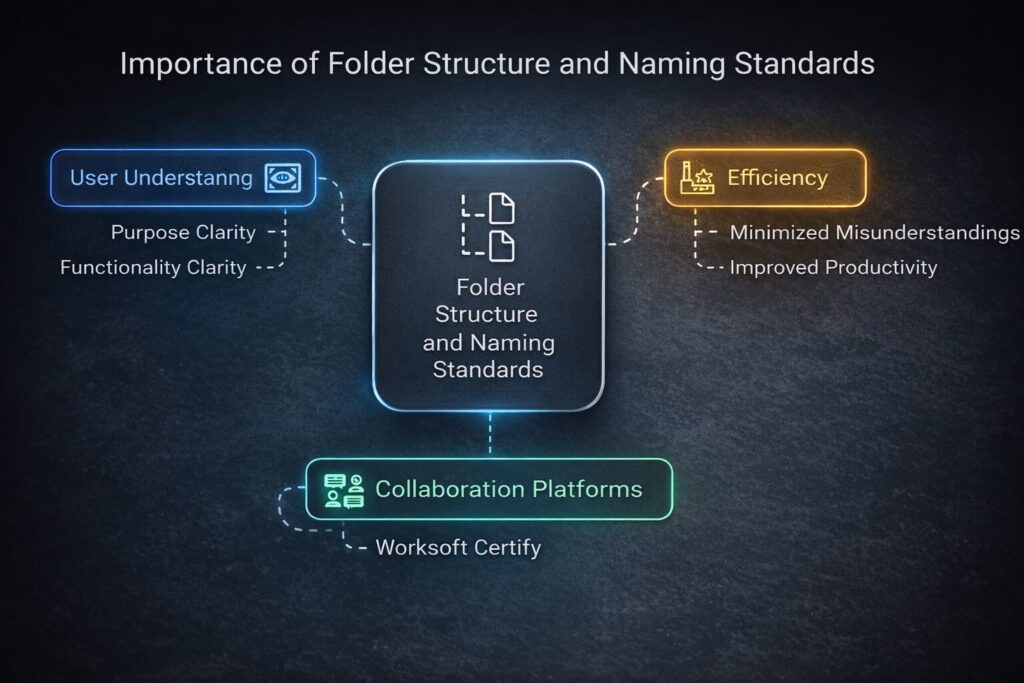
A well-defined folder structure and consistent naming standards are crucial for maintaining organization and reducing confusion.
In collaborative environments like those utilizing Worksoft Certify, a standardized approach to folder organization and naming conventions allows users to quickly understand the purpose and functionality of various entities.
This clarity becomes especially important when multiple users share and reuse Certify assets, as it helps minimize misunderstandings and improves overall efficiency.
Worksoft Certify Process and Data Folder Structures
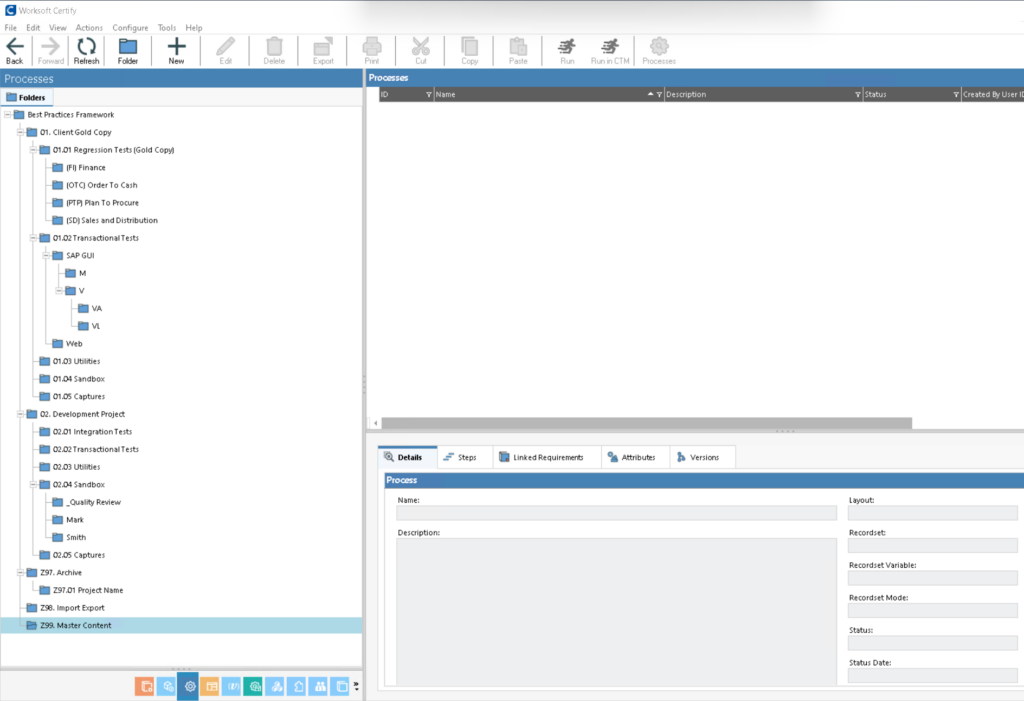
1. Client Gold Copy
A folder designated for approved regression tests is organized into subfolders that align with functional areas, including corresponding transactional tests and utilities.
Gold copy folders are secured, granting edit access only to specific users or groups. These designated users are responsible for promoting test assets into production.
2. Development Project
This folder holds new process developments. Developers store the developed processes in subfolders matching functional areas, along with transactional tests and utilities. Developers build and review the test assets from the Sandbox folder. Once the assets are approved, the team promotes them to the Client Gold Copy folders.
If required, the team can move a test asset from the Gold Copy folders into the appropriate Sandbox folder for maintenance. Once the team completes and reviews the maintenance, it promotes the asset back to the Gold Copy.
3. Archive
An Archive folder is used to store old, obsolete, or unused assets that may be deleted later.
This helps declutter your folders and maintain a well-organized framework while preserving scripts that might be needed in the future.
4. Import/Export
The Import and Export folder transfers test scripts between projects or within the same project. Worksoft Certify lets you export assets as a package file (.zip) that you can import when needed.
To maintain consistency, we recommend moving the processes you intend to export into this folder before you package them. This ensures that when you import the package into another project, it retains the same folder structure, preventing duplicate or ambiguous folder structures from affecting the existing framework.
Additionally, dependent Layouts and Recordsets will follow the same folder structure.
Therefore, it is advisable to move them to the Import/Export folder before exporting the process to maintain a well-organized structure.
5. Master Content
Master Content is pre-packaged by Worksoft within the Certify database. These pre-built, reusable automation assets include scripts for standard SAP GUI flows across various functional areas and generic utilities to support automation.
Customers can leverage these scripts for regression testing by simply updating the data. Additionally, if needed, the steps can be modified to align with specific requirements. This eliminates the need to build tests from scratch, significantly saving time and effort.
6. Integrated Tests
In the Development Project, this folder serves as the repository for all developed end-to-end processes that the team has reviewed for best practices.
Once the team completes the review, it stores the E2E tests here and sends them for business sign-off. After the business owner approves them, the team moves these tests to the gold-copy folder “Regression Tests” and locks them for editing.
7. Transactional Tests
Transactional tests are component scripts developed and stored in their respective folders.
For instance, if I develop an SAP GUI process for Sales Order Creation (VA01), I would place it under Development Project>Transactional Tests > SAP GUI > V > VA.
Once these scripts are reviewed and signed off, they are moved to the Gold Copy folder Gold Copy>Transactional Tests > SAP GUI > V > VA, where they are locked for editing.
8. Utilities
Utilities store reusable components like generic functions and actions that can be used across multiple tests such as Closing Browsers etc.
It helps organize common tasks, promotes consistency, reduces redundancy, and simplifies maintenance by allowing changes in one place to reflect across all tests using those utilities.
Once these scripts are reviewed and signed off, they are moved to the Gold Copy folder, where the scripts are locked for editing.
9. Sandbox
Developers initially build and review test assets in the Sandbox folder. Once the assets are reviewed and approved, the team promotes them to the respective Gold Copy folders: Regression Tests, Transactional Tests, and Utilities.
If test assets require updates or maintenance, the team copies them from the Gold Copy folders back into the Sandbox folder for modifications. After making the necessary updates and reviews, the team promotes the revised test assets back to the Gold Copy folders.
To ensure integrity, Gold Copy folders should have restricted edit access, allowing only designated users to manage and promote test assets into production. This structured workflow ensures that all test assets remain secure, validated, and up to date.
10. Captures
The Capture folder is a dedicated space for storing raw test steps recordings created using the Worksoft Business Capture Tool (Standalone/Inline).
This folder plays a crucial role in streamlining test creation, enhancing collaboration, and maintaining organized test assets.
By regularly reviewing its content and using clear naming conventions, teams can ensure efficient management and easy updates of their test processes.
Conclusion
A well-structured folder organization in Worksoft Certify is essential for maintaining efficiency, collaboration, and long-term scalability in test automation.
By following best practices, such as using designated folders for regression tests, development projects, archives, imports/exports, and utilities, teams can ensure consistency, streamline workflows, and minimize redundancy.
Implementing these guidelines helps maintain an organized framework, improves test reliability, and enhances automation success across various enterprise applications.