



Introduction
When automating web applications with Worksoft, browser extensions are very important. Worksoft Browser Extensions allow communication between Worksoft products and supported web browsers. This makes it possible for automation tools to find web elements, record user actions, and run automated processes effectively.
This guide will explain the available Worksoft browser extensions, why they are necessary, and how to set them up correctly.
Why are Worksoft Browser Extensions required?
Worksoft Browser Extensions are add-ons that enable communication between Worksoft products and modern web browsers such as:
- Google Chrome
- Microsoft Edge
- Mozilla Firefox
These extensions provide the connection Worksoft needs to find browser objects, interact with web applications, capture user actions, and perform automation tasks. Without the proper browser extension, Worksoft cannot effectively communicate with or automate web applications running in these browsers.
What are available Worksoft browser Extensions
Worksoft provides two browser extensions to support its web-based automation and process capture capabilities:
- Worksoft Automation Extension for Certify
- Worksoft Automation Extension for Capture
Each extension serves a specific purpose within the Worksoft ecosystem.
Worksoft Automation Extension for Certify
The Worksoft Automation Extension for Certify allows communication between Worksoft Certify and supported web browsers.
With this extension installed and enabled, Worksoft Certify can:
- Identify and interact with web controls and elements
- Record user actions within web applications
- Execute automated test scripts
- Support reliable browser-based test automation
This extension is essential for testing web applications through Worksoft Certify.
Worksoft Automation Extension for Capture
The Worksoft Automation Extension for Capture allows Worksoft Capture to interact with web browsers and collect user activity data.
Key capabilities include:
- Capturing user interactions within web applications
- Recognizing and mapping web elements
- Recording business processes
- Gathering metadata for process documentation
- Supporting automation creation and process intelligence initiatives
The extension acts as a bridge between the browser and the Worksoft Capture platform.
Why are Worksoft browser extensions not required for Internet Explorer?
Unlike modern browsers, Internet Explorer (IE) does not require a Worksoft browser extension for automation.
Internet Explorer was built on Microsoft’s Component Object Model (COM) architecture. This allows applications like Worksoft to communicate directly with the browser through native interfaces.
Because of this direct integration capability:
- Worksoft can interact with Internet Explorer without additional browser extensions.
- Web elements can be identified and automated through native browser interfaces.
- No separate extension installation is required.
This is one of the key differences between Internet Explorer and modern browsers like Chrome, Edge, and Firefox, which need extensions to enable automation.
Steps to install Worksoft Browser Extensions
The installation process varies slightly depending on the browser being used. In the following sections, we’ll walk through the step-by-step setup for each supported browser.
Note: For Chromium-based browsers, browser extensions are installed using .crx files. Therefore, the .crx extension package is used to install Worksoft Browser Extensions in both Google Chrome and Microsoft Edge.
Setting up Worksoft Browser Extensions in Google Chrome
The following instructions explain how to install and enable the Worksoft Browser Extension in Google Chrome.
Adding Certify extension in Chrome
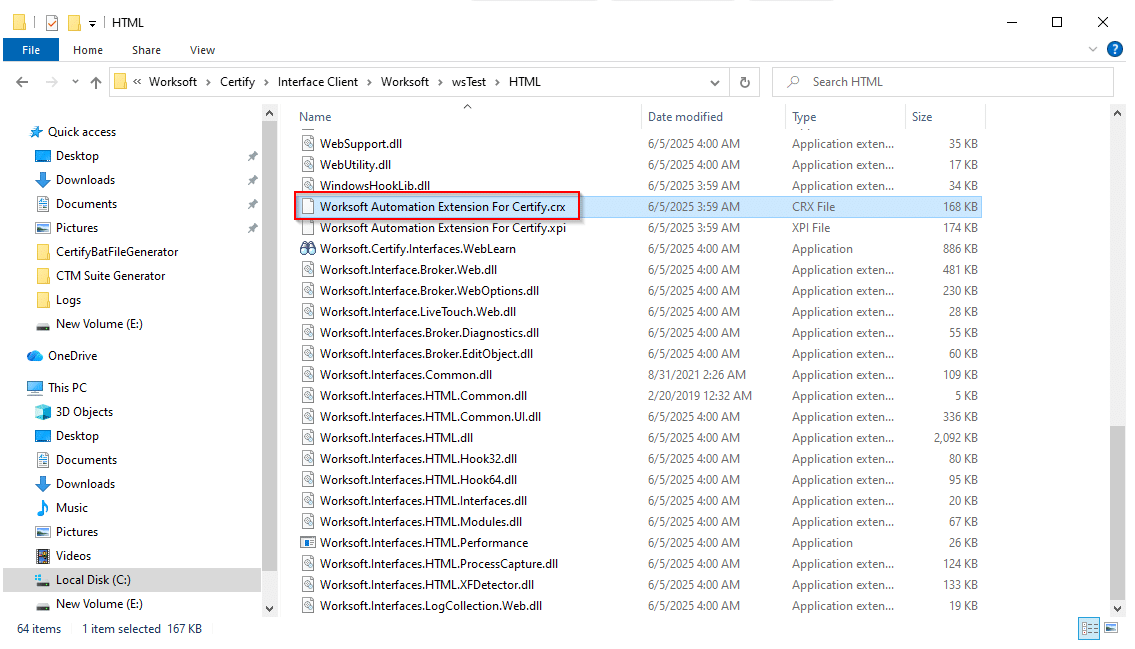
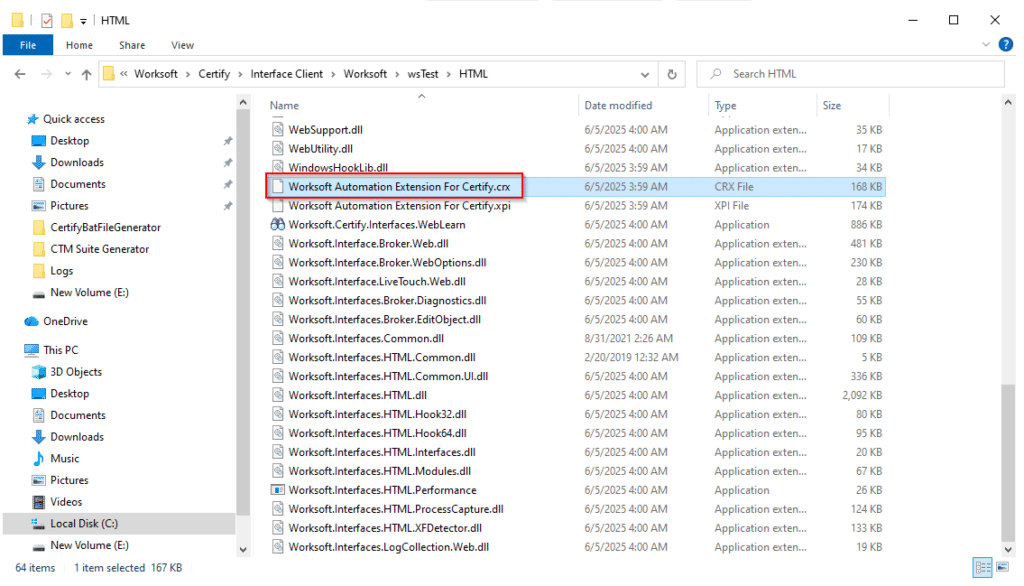
- Navigate to the Worksoft installation directory and locate the Certify Browser Extension.
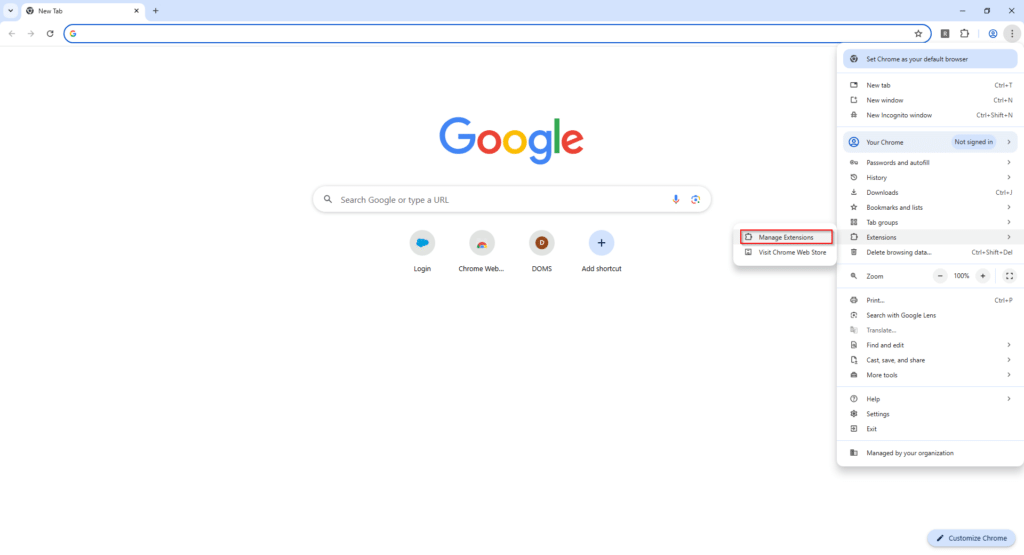
2. Open Google Chrome and navigate to the Extensions page (chrome://extensions).
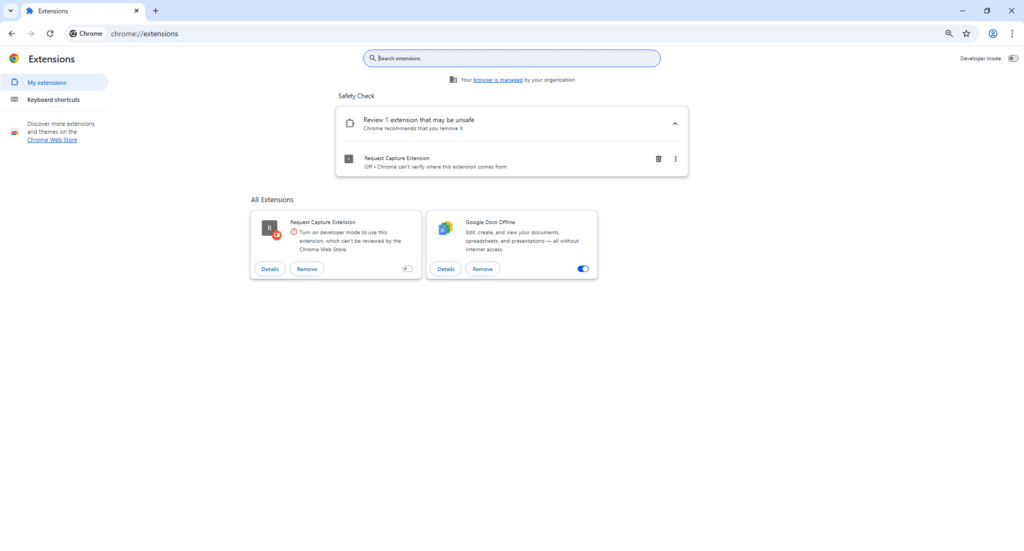
3. Enable Developer Mode.
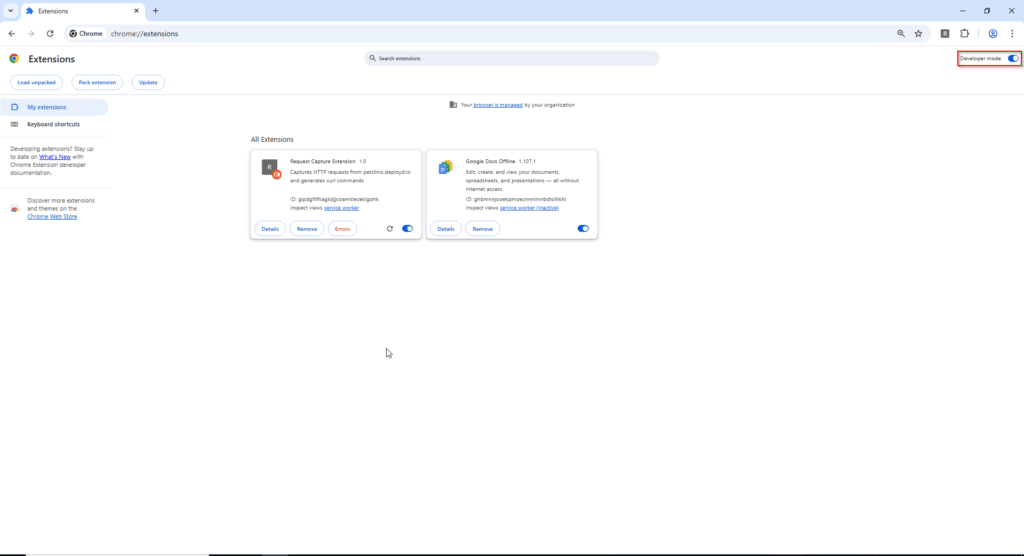
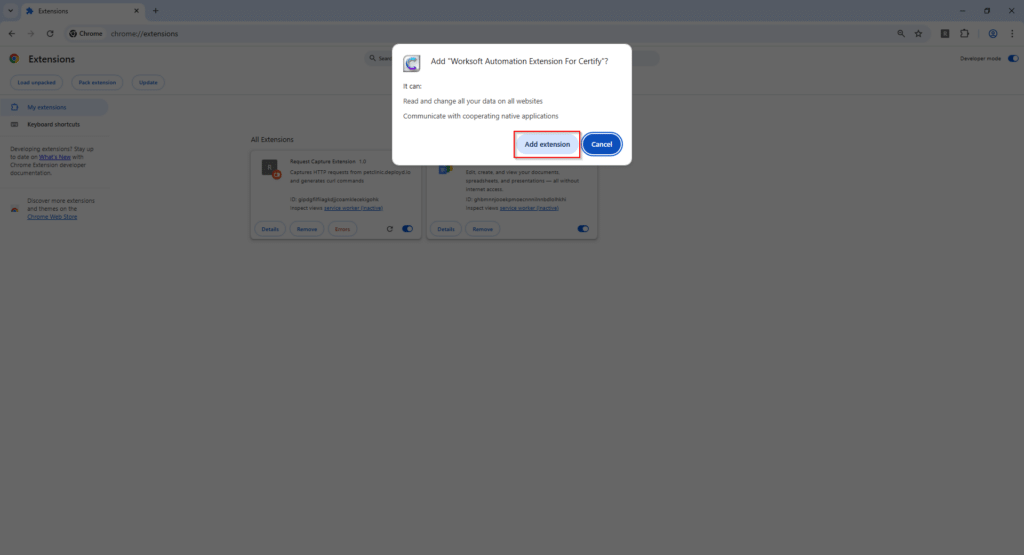
4. Drag and drop the Certify extension file (.crx) onto the Extensions page.
5. Confirm the installation when prompted.
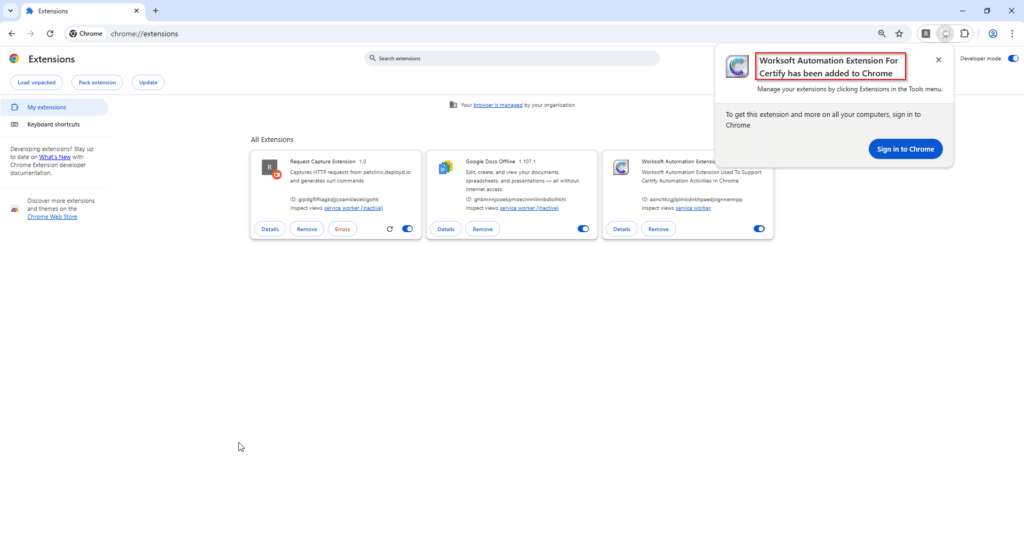
6. Verify that the extension is enabled.
Adding Capture extension in Chrome
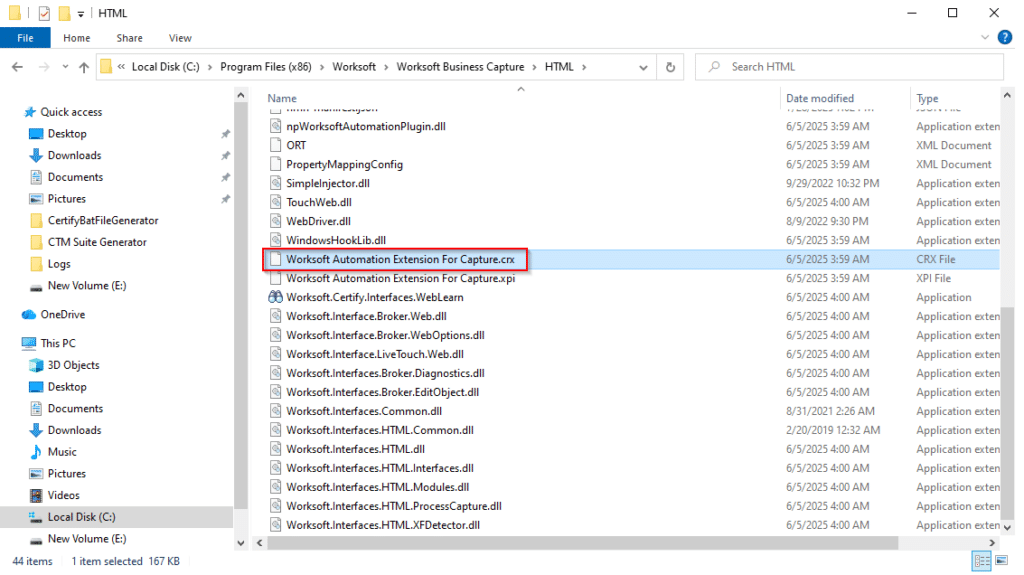
- Navigate to the Worksoft installation directory and locate the Capture Browser Extension.
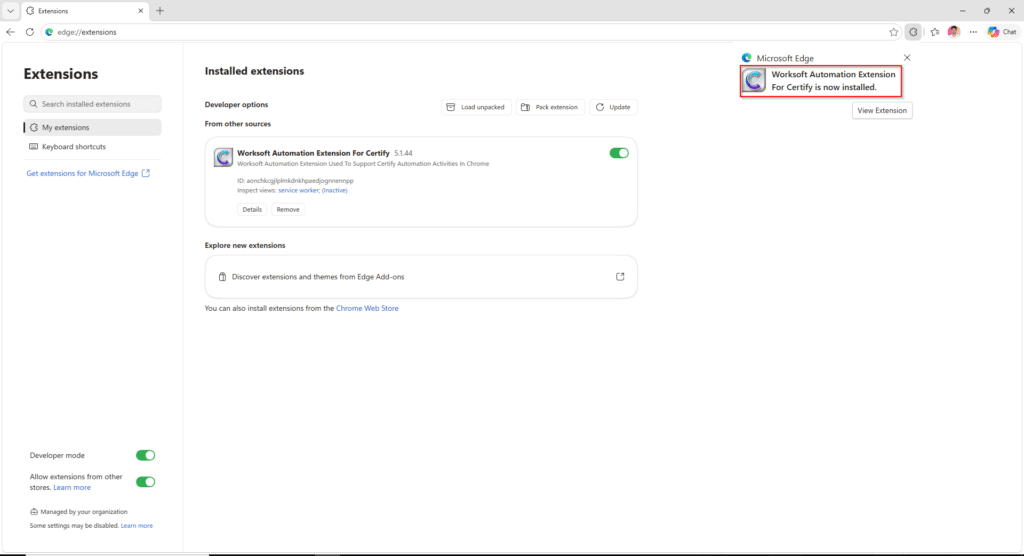
2. Open Microsoft Edge and navigate to the Extensions page (edge://extensions).
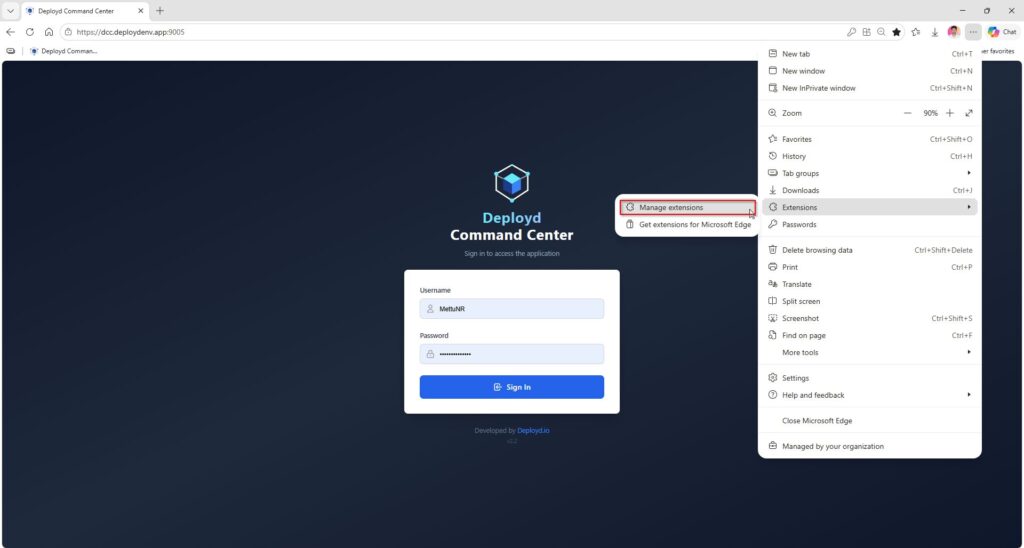
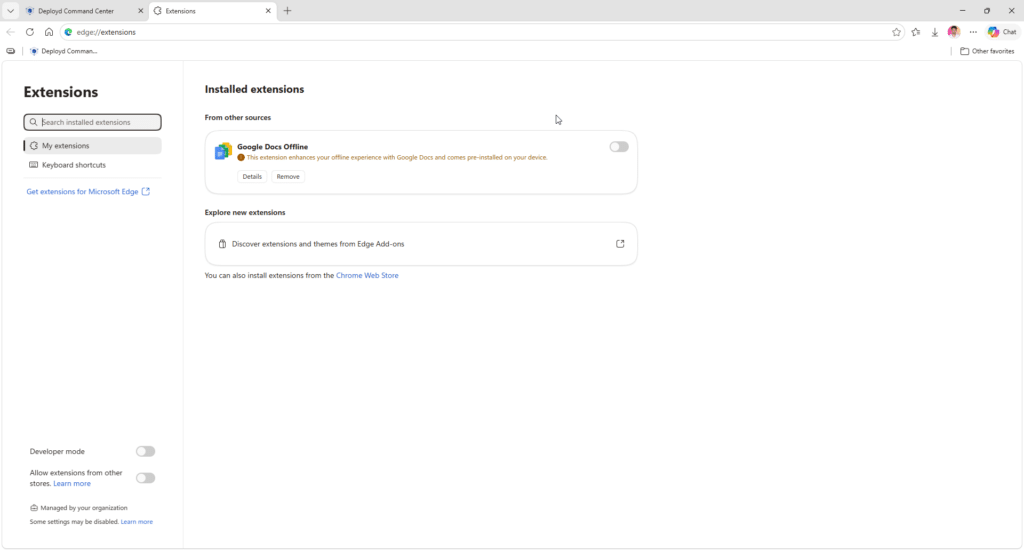
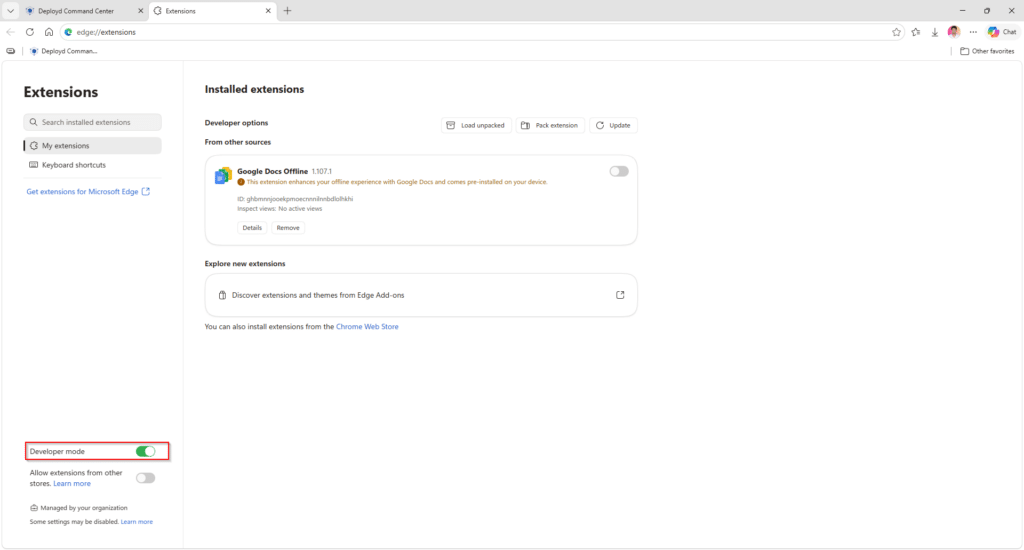
3. Enable Developer Mode
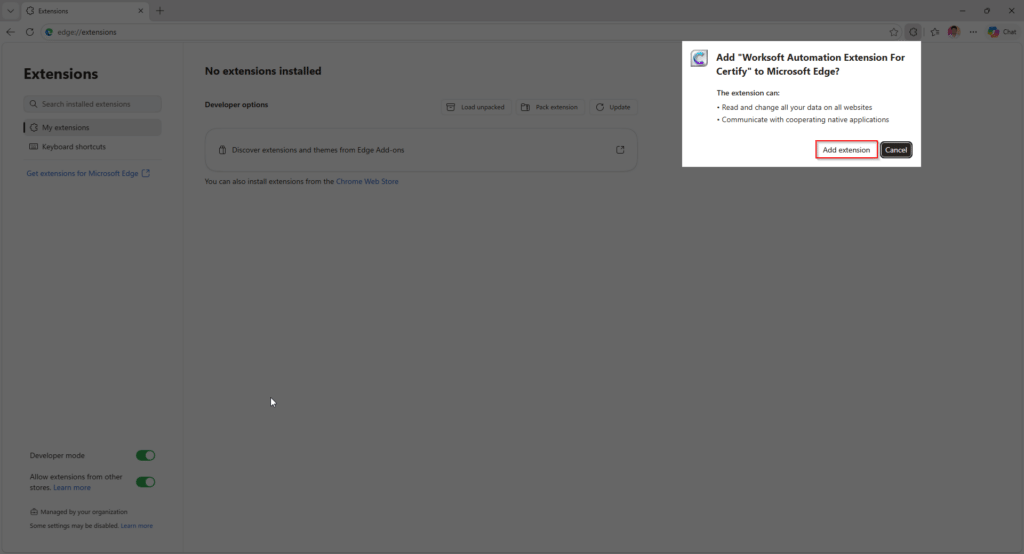
4. Drag and drop the Certify extension file (.crx) onto the Extensions page.
5. Confirm the installation when prompted.
6. Verify that the extension is enabled.
Adding Capture extension in Edge
- Navigate to the Worksoft installation directory and locate the Capture Browser Extension.
2. Open the Edge Extensions page.
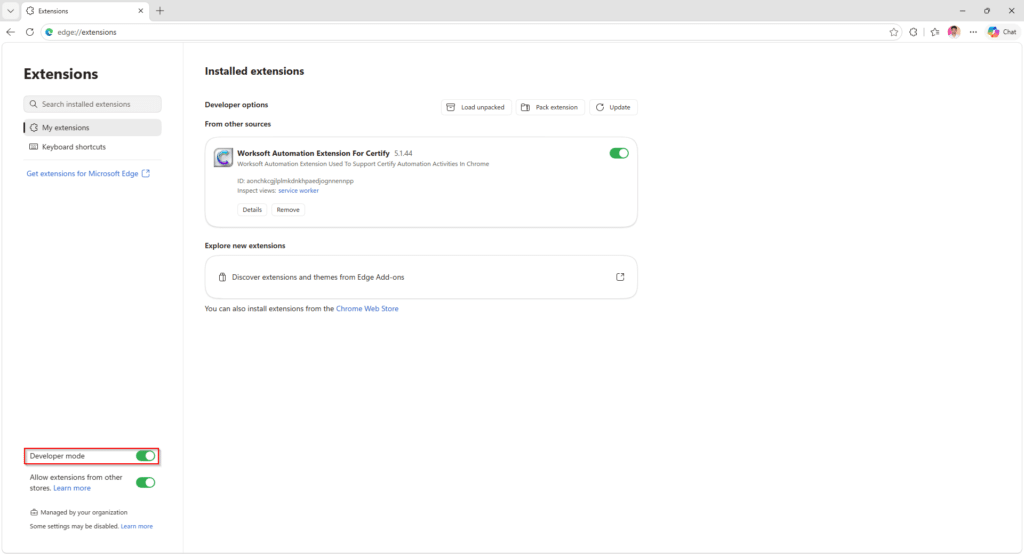
Note: Developer Mode has been already enabled, as it was configured during the addition of the Certify extension.
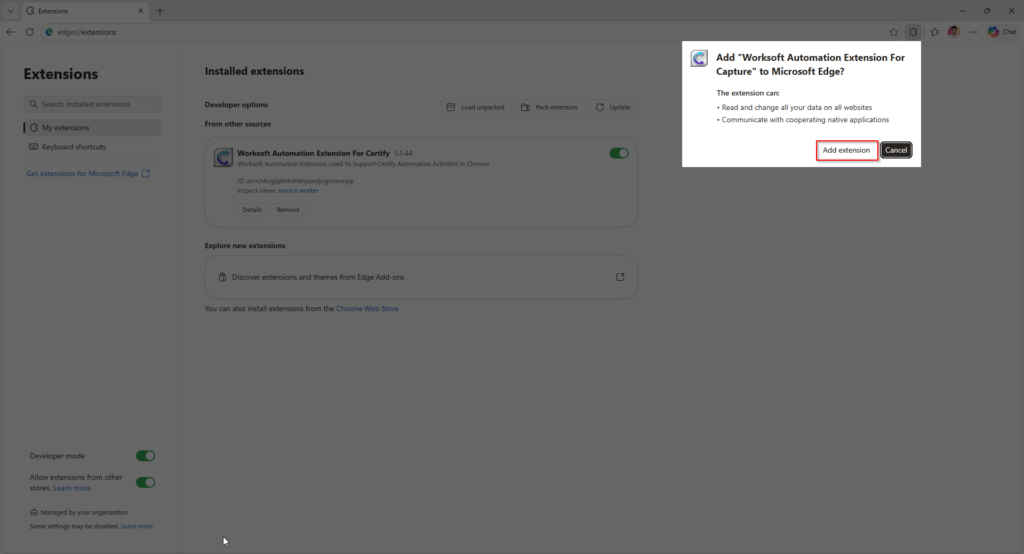
3. Drag and drop the Capture extension file (.crx) onto the page.
4. Confirm the installation when prompted.
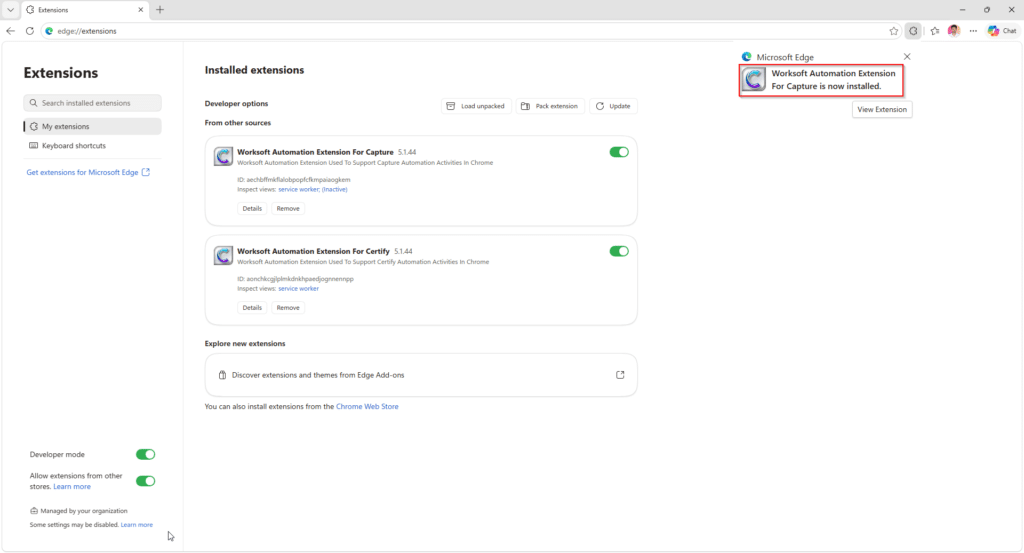
5. Verify that the extension is enabled.
Setting up Worksoft Browser Extensions in Mozilla Firefox
The following instructions explain how to install and enable the Worksoft Browser Extension in Mozilla Firefox.
Adding Certify extension in Firefox
- Navigate to the Worksoft installation directory and locate the Certify Browser Extension.
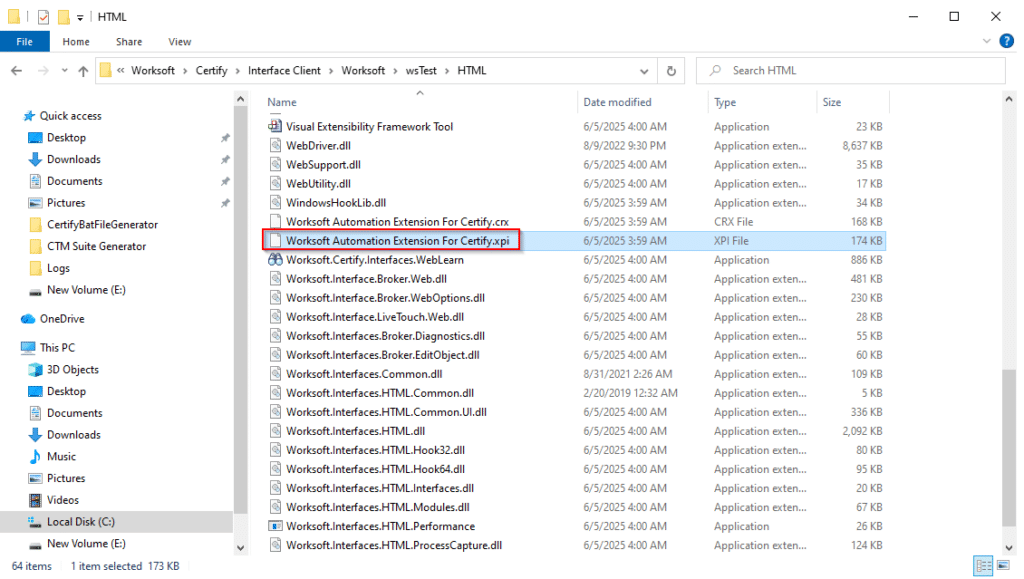
2. Open the Firefox Extensions page.
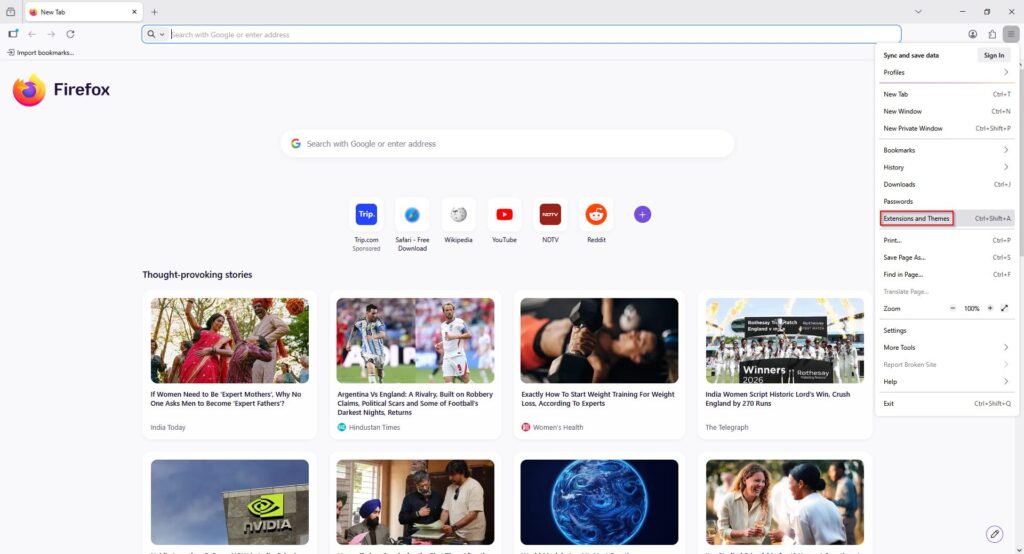
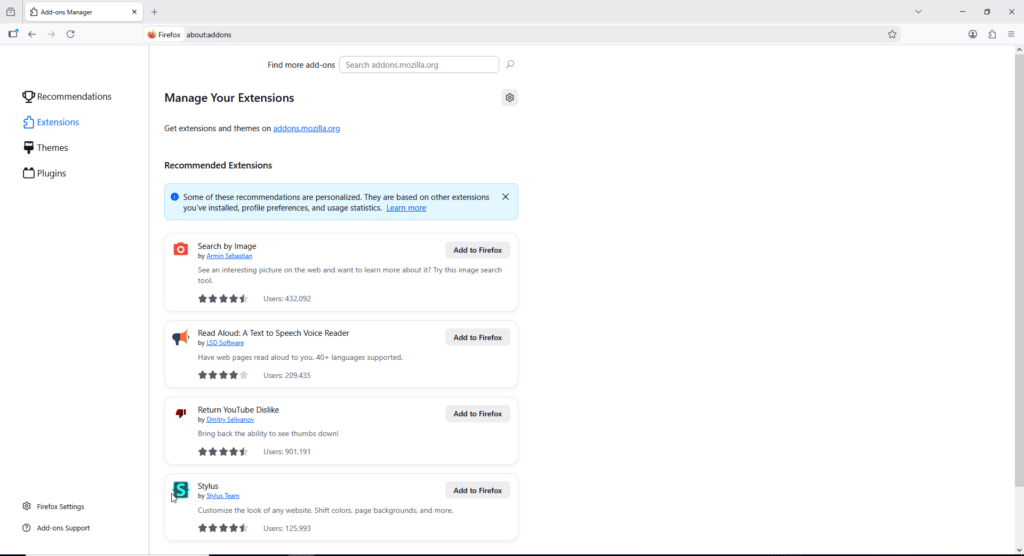
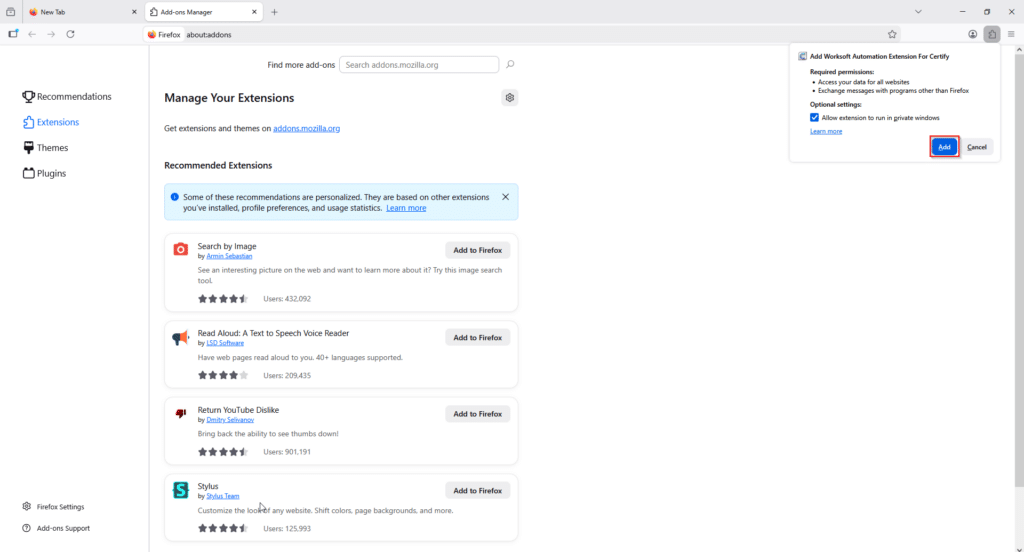
3. Drag and drop the Certify extension file (.xpi) into Firefox.
4. Confirm allow extension to run in private window and the installation when prompted.
5. Verify that the extension is enabled.
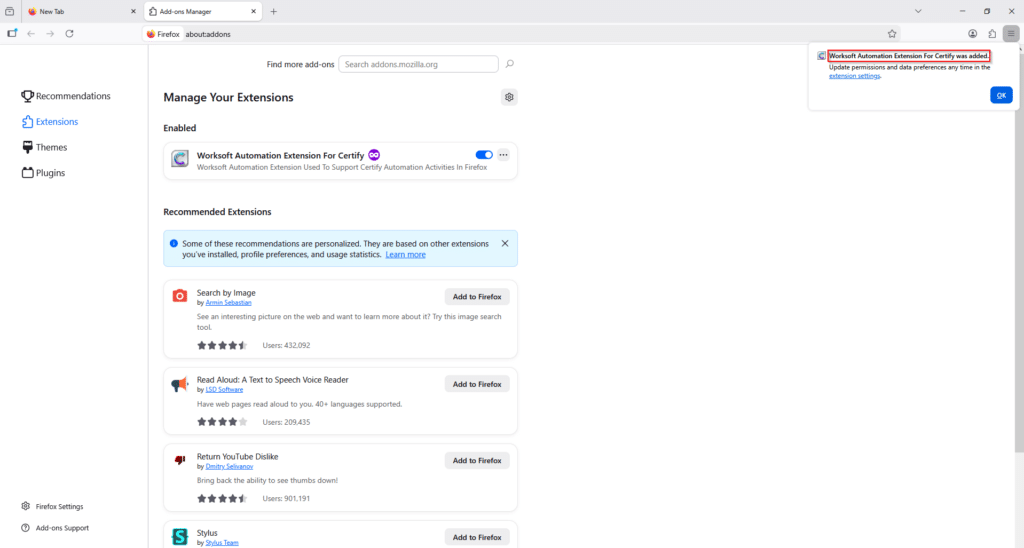
Adding Capture extension in Firefox
- Navigate to the Worksoft installation directory and locate the Capture Browser Extension.
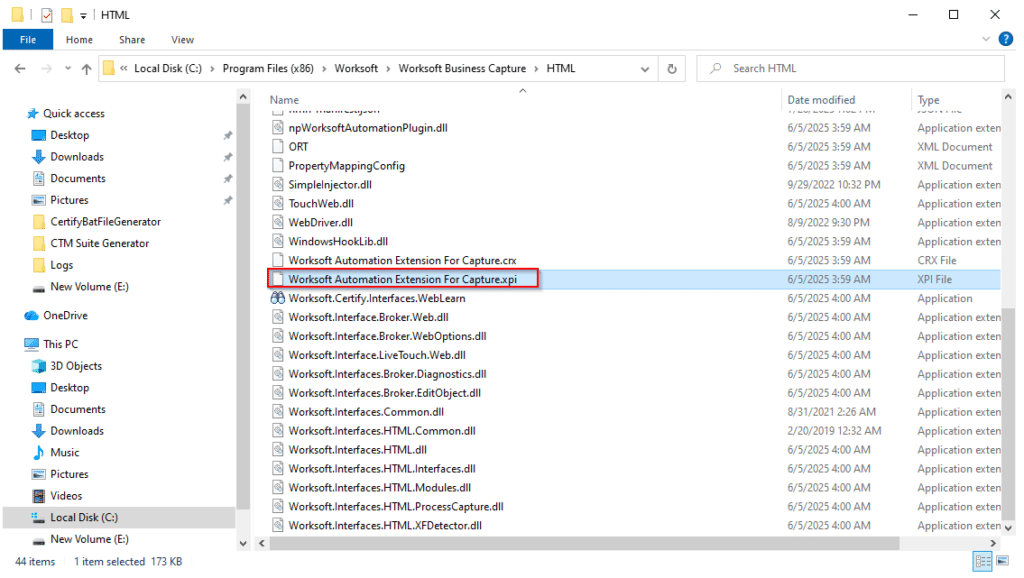
2. Open the Firefox Extensions page.
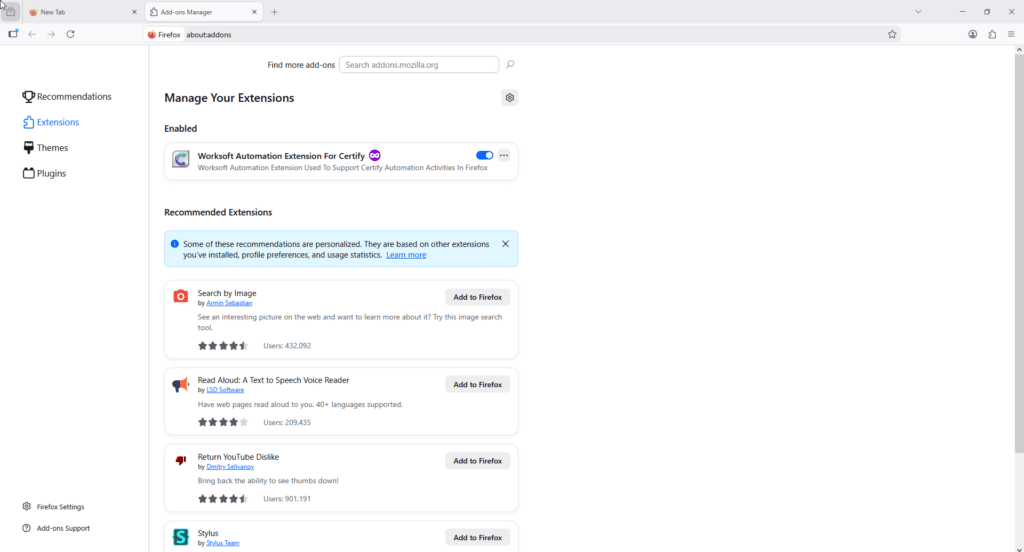
3. Drag and drop the Capture extension file (.xpi) into Firefox.
4. Confirm allow extension to run in private window and the installation when prompted.
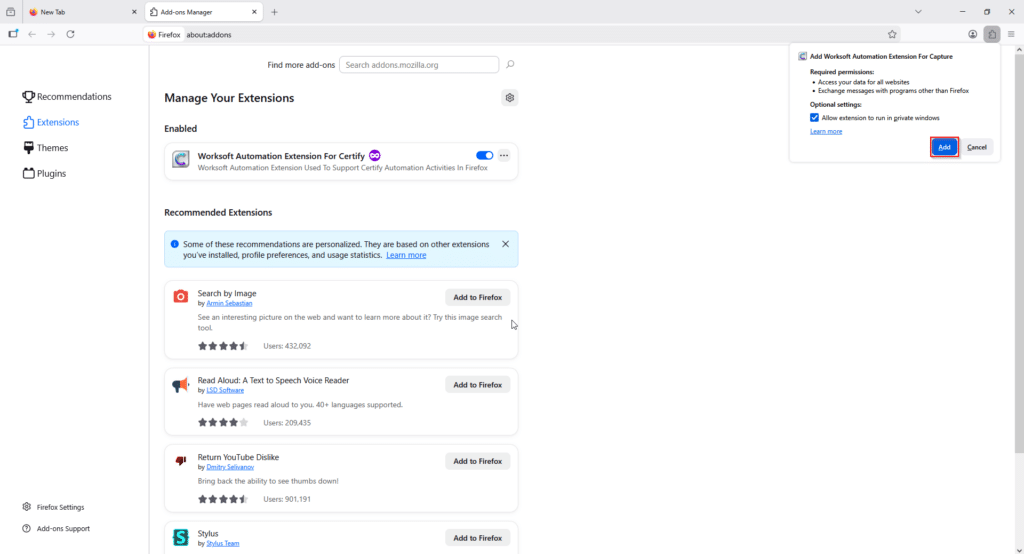
5. Verify that the extension is enabled.
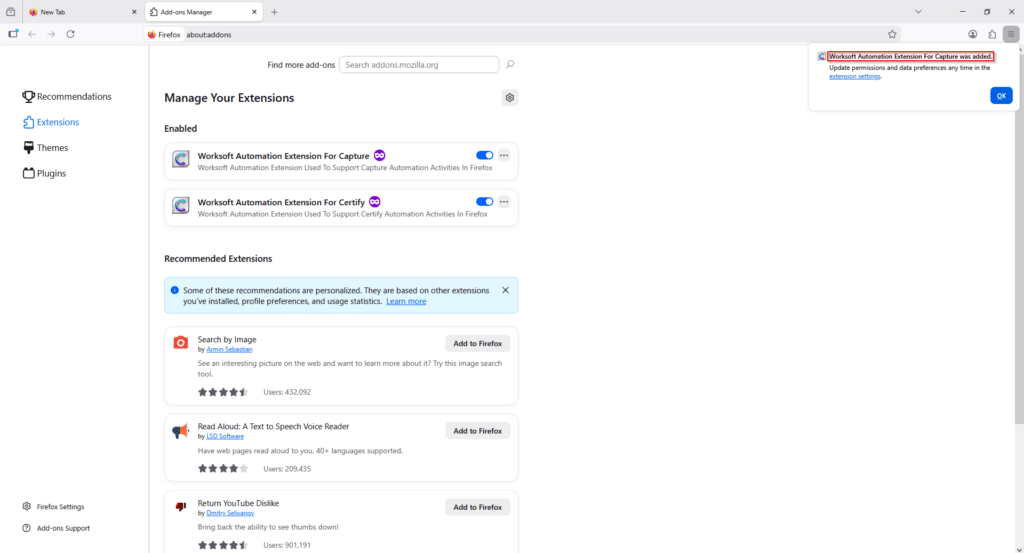
Configure Worksoft Certify extension
The Certify extension can be configured from the Chrome Extension Details page. The same settings are available for the Capture extension as well. While the user interface may vary slightly between browsers, the configuration options are generally the same.
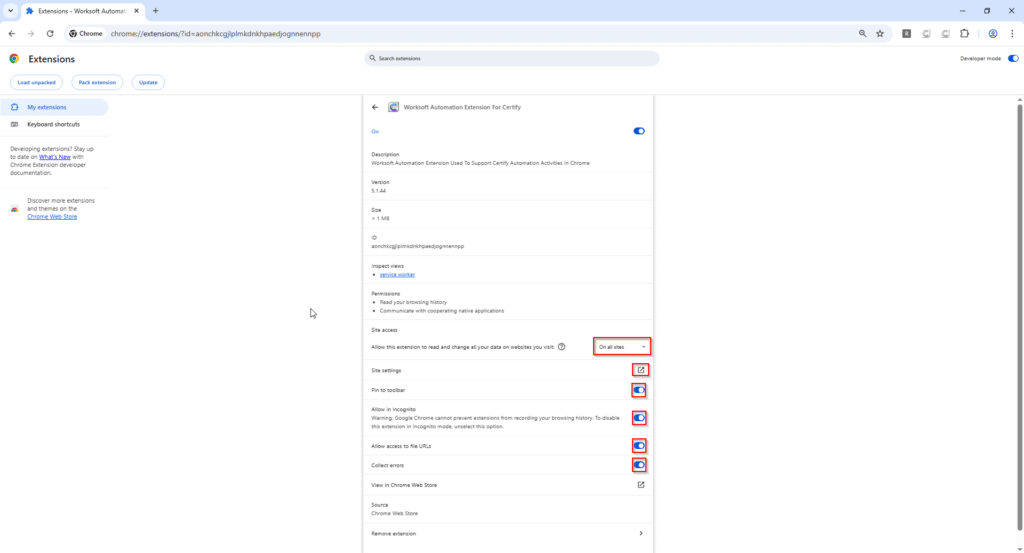
Site Access: The Site Access setting controls which websites the extension can access and interact with. Users can choose from the following options:
- On click – The extension runs only when the user clicks the extension icon.
- On specific sites – The extension is allowed to work only on selected websites.
- On all sites – The extension can access all websites visited by the user.
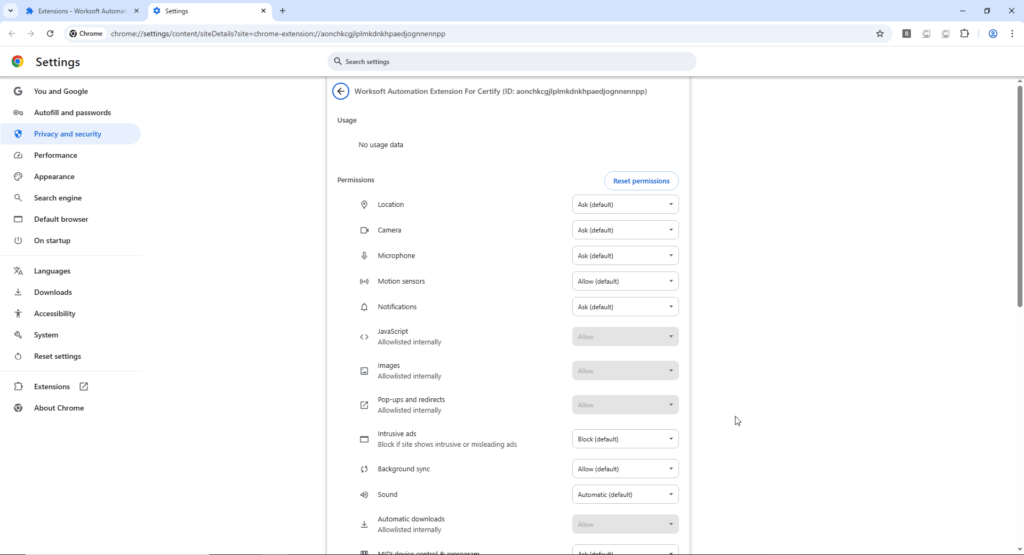
Site Settings: The Site Settings option allows users to manage the permissions granted to the extension for a particular website. This helps control what actions the extension can perform on that site.
Pin to Toolbar: When Pin to Toolbar is enabled, the extension icon appears in the browser’s Extensions toolbar. This makes it easy to check whether the Certify extension is active on a website.
Note: This feature is available only in Google Chrome.
If the extension icon appears inactive, the Certify extension is not currently accessing the website.
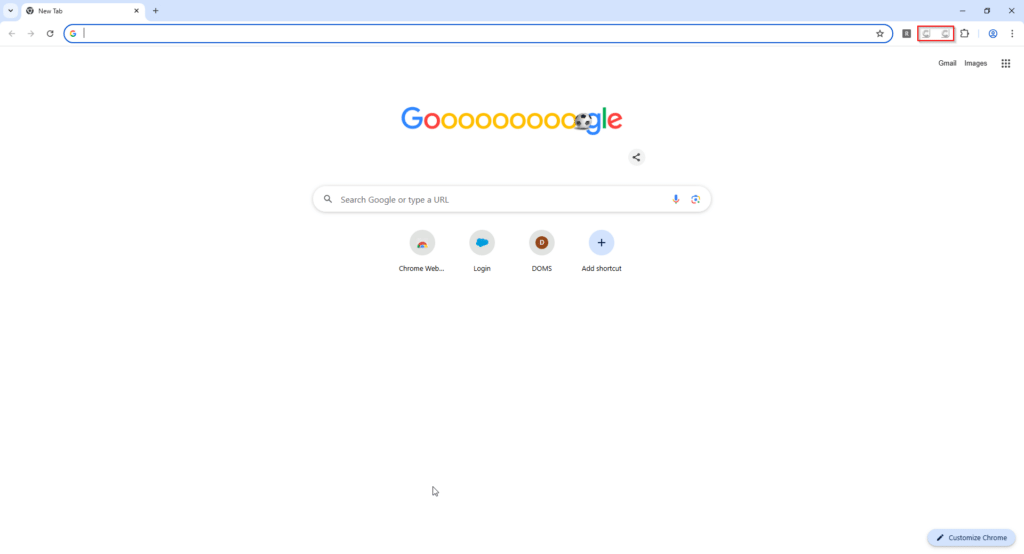
If the extension icon appears active, the Certify extension is accessing the website.

Allow in Incognito: Enabling Allow in Incognito lets the extension work on websites opened in an Incognito window. If this option is disabled, the extension will not be able to access websites opened in Incognito mode.
In some browsers, this option is called Allow in Private Window.
Note: In Mozilla Firefox, this feature can be opted while installing extension.
Allow access to file URLs: This setting allows the extension to work with local files opened in the browser using the file:// protocol.
For example, if a user opens a local HTML file stored on their computer, the extension can interact with that file. It can perform tasks like reading content, making changes, or executing automation steps. This option is useful when automation scenarios involve locally stored files.
Collect errors: The Collect Errors option helps improve the extension by allowing Chrome to collect diagnostic information when issues occur.
This information may include:
- Extension crashes
- Runtime exceptions
- Performance-related issues
- Other diagnostic details
The collected information helps developers identify problems quickly and improve the stability and reliability of the extension.
How to check if extensions are enabled in a browser
There are two ways to check if extensions are enabled in a browser.
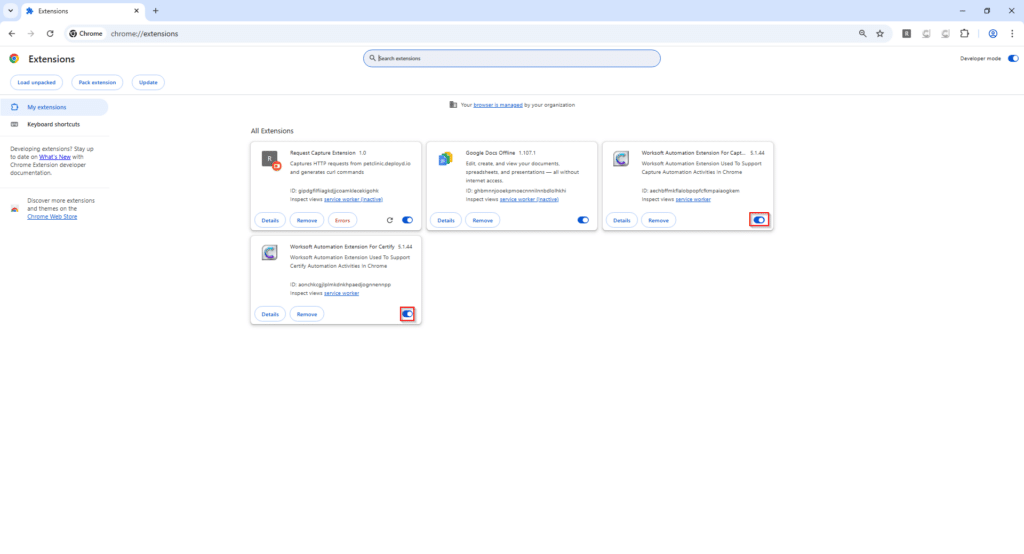
1. Open Extensions page in the browser and see if the extensions are enabled.
2. If the extension icon appears inactive, the Certify extension is not currently accessing the website.
If the extension icon appears active, the Certify extension is accessing the website.
Conclusion
Worksoft Browser Extensions are essential for enabling browser-based automation and process capture in modern web browsers. Whether you are using Worksoft Certify for test automation or Worksoft Capture for process discovery, installing the appropriate browser extension ensures seamless communication between Worksoft and your browser.
By following the installation steps outlined in this guide, you can quickly configure Chrome, Edge, or Firefox and prepare your Worksoft environment for reliable automation and process capture.